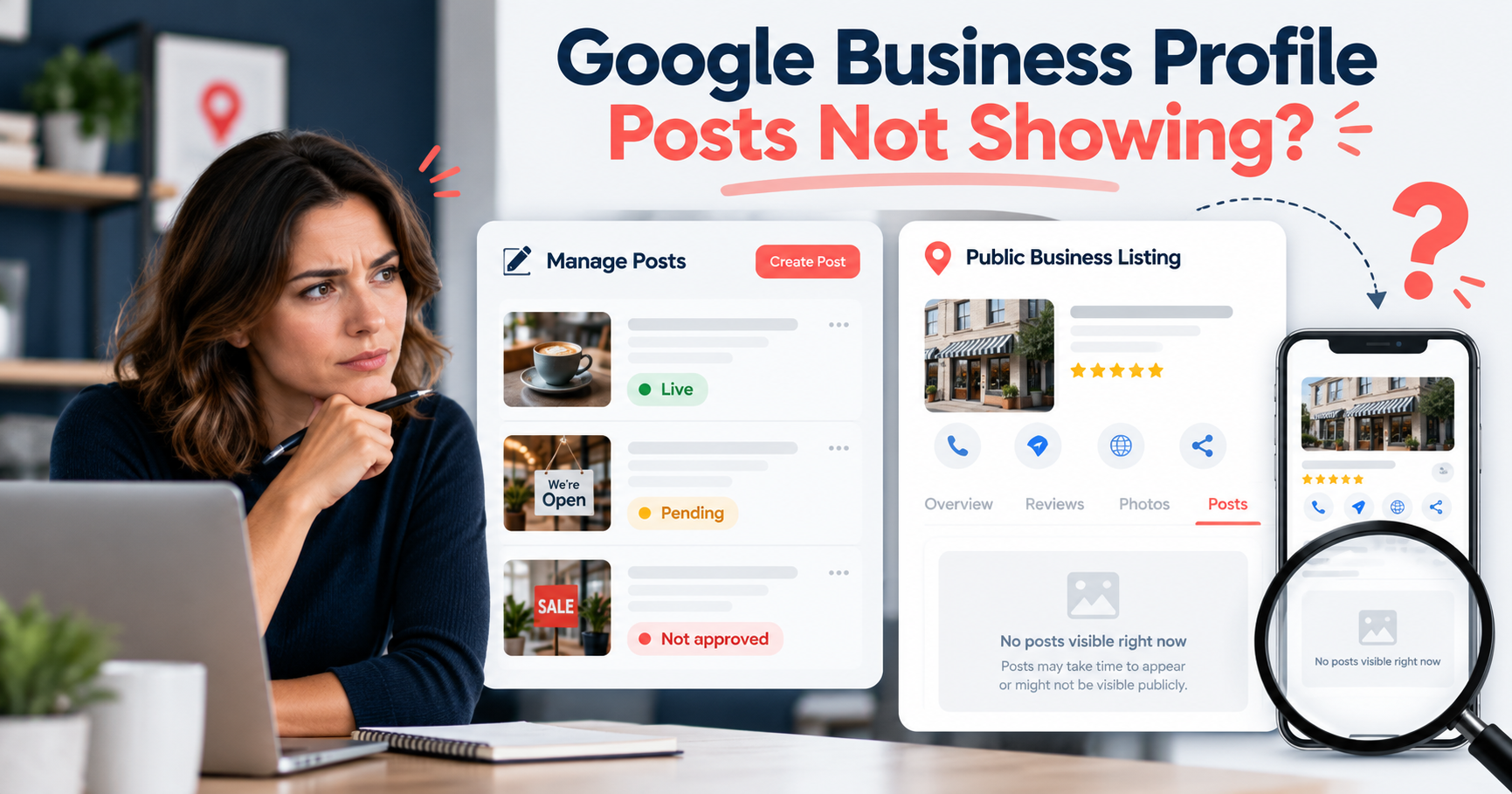
If your Google Business Profile posts are not showing, start with the status of the individual post. Then open the public listing and look in the places where customers can find updates. Seeing a post in your management screen does not, by itself, tell you what a customer sees.
Work through one post at a time. You will get a clearer answer by comparing a specific update with its public display than by deleting your entire posting history.
Check whether the post is live, pending, or not approved
Google describes three post statuses: Live means public, Pending means it is still processing or the profile is unverified, and Not approved means it did not pass content review. A rejected post has a policy explanation beside its status. Check Google’s post guidance for the current details.
Record the status exactly as it appears. A note such as “missing” can describe several different problems and will not help you distinguish them later.
If the post is pending
Check whether your profile also displays a verification request. If it does, address that request before spending time rewriting the post. Our video verification guide for service area businesses can help you prepare when that method is offered.
Save the date you submitted the post. Avoid making several versions while you are still trying to understand the first one’s status; you will have more items to track without a clearer diagnosis.
If the post is not approved
Read the explanation and inspect the part of the post it concerns. Change the relevant content, then check the new result. Keep a copy of your original wording so you can see what changed.
Look beyond the first screen of the listing
Google says posts can appear in the Updates or Overview tabs on mobile and in the From the owner section on desktop. The exact presentation depends on the surface you are using.
Open your listing in a private browser window to inspect it without the owner controls. Search for your business name and city, confirm that you selected the right listing, and check both Search and Maps.
Take a screenshot of the public view and another of the post status. If the post is live but you cannot locate it, those two views give you something concrete to investigate or share with support.
Check the schedule and dates
Look at the scheduled publication time and any dates attached to the post. A future update needs a different response from one that should already be public.
Google says posts older than six months are archived unless a date range is set. Review older content with that in mind rather than assuming every past update will remain prominent.
For an offer, compare the date in the text with the dates entered in the post settings. Correct a mismatch so customers are not left wondering whether the offer is still available.
Inspect the wording, image, and destination
Read the post as someone considering your business. Does it describe an actual service or a current announcement? Does the button lead to the page that the text promises?
For example, a post inviting customers to request a roof inspection should lead to information about that service or a relevant contact form. A broken link to an old promotion is worth fixing even if the post remains visible.
- Open the button’s destination on your phone and check that it works.
- Remove irrelevant wording or an offer your business no longer provides.
- Check that the image belongs to your business and supports the message.
- If you include a phone number, confirm that it belongs to the business. Google warns that an unverifiable number in the description can cause rejection.
Do not assume punctuation, a particular phrase, or an image filename caused rejection unless the available evidence supports that conclusion. Change what you can explain, then inspect the result.
When to contact Google about a missing post
If the status and public display still conflict, prepare a short support summary. Include your listing link, the submission date, the exact status, and screenshots showing the discrepancy.
Explain where you checked: mobile Search, desktop Search, or Maps. “The post is marked live, but I cannot find it in Maps on my phone” is more useful than “Google is broken.”
Use the support route linked from Google’s content restriction guidance if a moderation decision is involved. The route varies by location and type of decision.
Common questions about missing Google posts
Should I delete and repost the update?
Keep the original long enough to record its status and any explanation. Reposting without understanding the issue makes it harder to compare what happened.
What if only the photo is missing?
Check the media separately. Our guide to Google Business Profile cover photos not showing explains the difference between an upload problem and Google’s choice of main image.
Get help maintaining your Google posts
Moose Marketing Group provides Google Business Profile management, including weekly posts, for businesses in the Oklahoma City area. Contact us about your profile if you want ongoing help keeping it current.