If you are searching for how to delete Google Business Profile, the first thing to know is this: deleting the profile from your Google account is not always the same as removing the business from Google Search and Google Maps. The right move depends on whether the business closed, moved, has a duplicate listing, was created by mistake, or simply needs a different owner.
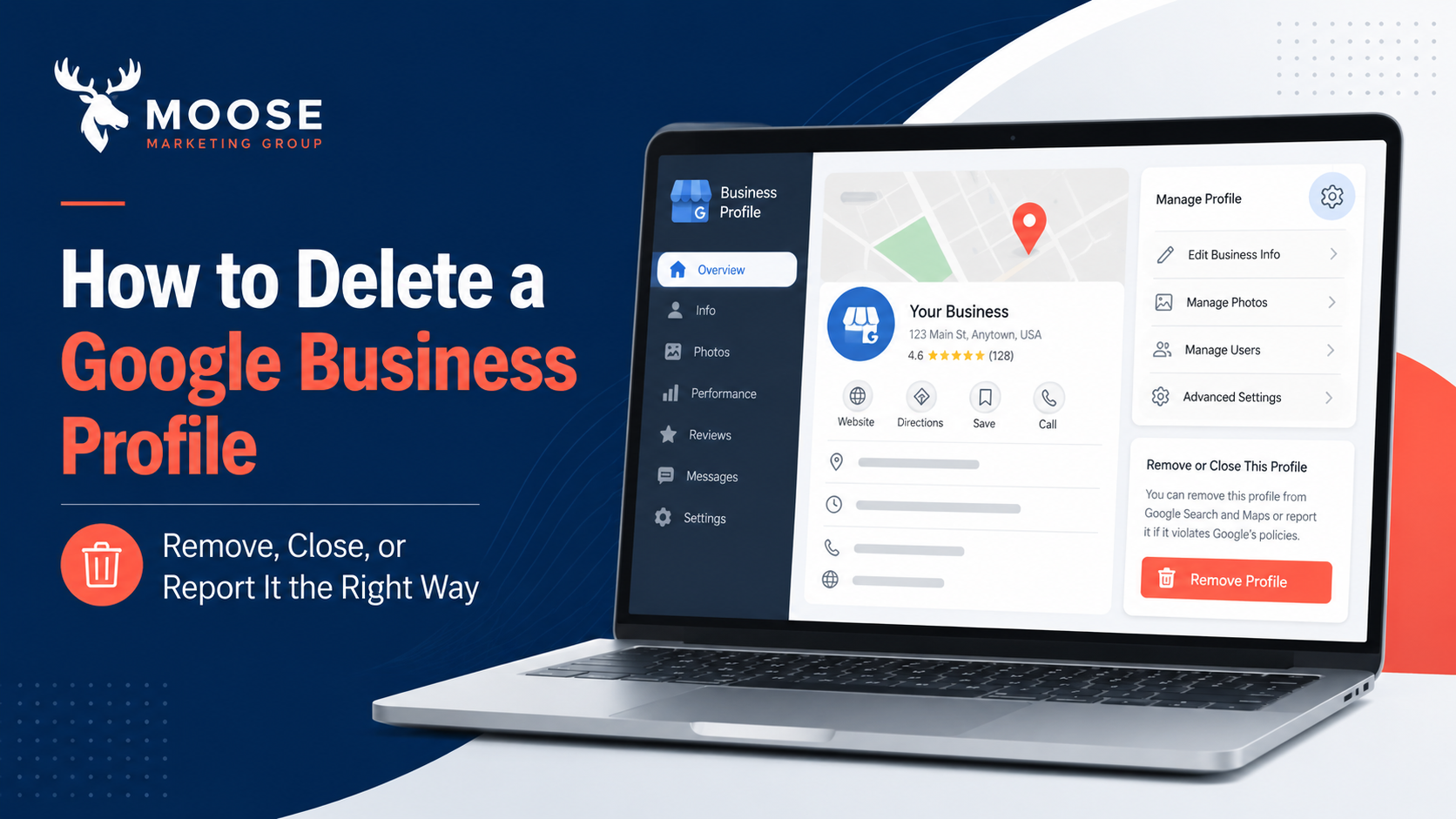
Quick answer: To delete a Google Business Profile you manage, sign in to the Google account connected to the profile, open the Business Profile, go to Business Profile settings, choose Remove Business Profile, then select Remove profile content and managers. Before doing that, make sure you are not deleting the wrong listing. In many cases, you should mark the business as permanently closed, report a duplicate, transfer ownership, or update the address instead.
Before You Delete Anything, Figure Out What Problem You Are Solving
I would not start by clicking the delete or remove button. That sounds strange, but with Google Business Profile, deleting first can create a bigger mess than the one you are trying to fix.
The phrase “delete Google Business Profile” can mean several different things:
- You want to stop managing a profile.
- Your business closed permanently.
- Your business moved to a new address.
- There is a duplicate profile showing on Google Maps.
- A profile exists for a business that never existed at that location.
- You created a profile by mistake and want it gone.
- Someone else owns the profile and you need access.
Those are different problems. They need different fixes. If you remove the wrong profile, you may lose owner-uploaded photos, posts, videos, review replies, and management access. Customer reviews may still remain visible, and the listing may still appear on Google Search or Maps.
My rule: If the business is real and still operating, do not delete the profile just because something is wrong. Fix the profile. If the business moved, update the location. If ownership changed, transfer ownership. If the listing is a duplicate, deal with the duplicate. Deleting should be the last step, not the first instinct.
Which Option Should You Choose?
Use this table before taking action. It will save you from deleting the wrong thing.
| Situation | Best Action | Why |
|---|---|---|
| You no longer want to manage the profile | Remove yourself or transfer ownership | This keeps the business information intact while removing your access. |
| The business closed permanently | Mark the profile as permanently closed | This tells customers the business is closed instead of making the listing suddenly confusing. |
| The business moved | Update the address or mark the old location as moved | This helps preserve the business entity and avoids making customers think the business shut down. |
| You accidentally created a duplicate | Remove the duplicate profile, not the main verified profile | Deleting the correct listing can hurt visibility and cause ownership problems. |
| A fake or non-existent business is on Google Maps | Use Suggest an edit and choose the most accurate removal reason | Google reviews map edits before publishing changes. |
| Someone else owns your real business profile | Request ownership | You need control before you can properly manage, fix, or remove the profile. |
For official instructions, Google has separate help pages for removing a Business Profile from your Google account, marking a business as closed, and suggesting edits in Google Maps.
How to Delete a Google Business Profile From Your Account
Use these steps when you own or manage the profile and you want to remove its profile content and managers from your Google account.
Step 1: Sign in to the correct Google account
Start by signing in to the Google account connected to the Business Profile. This matters because many business owners have multiple Gmail or Google Workspace accounts. If you do not see the profile, you may be in the wrong account.
Step 2: Open the Business Profile
Go to Business Profile Manager, or search your business name on Google while signed in. If you manage the profile, you should see profile management options.
Step 3: Open Business Profile settings
Select More, then choose Business Profile settings. Google changes layouts from time to time, so the exact button location may look slightly different depending on whether you are using Search, Maps, or Business Profile Manager.
Step 4: Choose Remove Business Profile
Select Remove Business Profile. Then choose Remove profile content and managers.
Step 5: Confirm the removal
Read the warning before confirming. Removing profile content and managers is permanent. Owner-added posts, photos, videos, and review replies can be removed. Customer reviews and other user-generated content may remain.
Important: Removing a Google Business Profile from your account does not automatically guarantee that the business disappears from Google Search or Google Maps. If your actual goal is to remove the listing from public view, you may need one of the options below.
How to Mark a Google Business Profile as Permanently Closed
If the business is closed for good, marking it as permanently closed is usually better than simply removing yourself as a manager. This tells customers what happened instead of leaving them guessing.
- Go to your Google Business Profile.
- Choose Edit profile.
- Open Business information.
- Go to the Hours section.
- Select the edit option.
- Choose Permanently closed.
- Save the change.
A permanently closed profile may still appear for some searches, especially branded searches. That is normal. The point is to clearly show that the business is no longer open.
If the business is closed for more than a week but not forever, use temporarily closed instead. Examples include seasonal closures, renovations, storm damage, short staffing, or a temporary pause in operations.
How to Request Removal From Google Maps
If the business should not be on Google Maps at all, use Suggest an edit. This is the path to use when the place does not exist, is a duplicate, moved somewhere else, is not open to the public, or is misleading.
- Open Google Maps.
- Search for the business profile you want removed or corrected.
- Select the profile.
- Click or tap Suggest an edit.
- Choose Place closed or not here.
- Select the most accurate reason.
- Submit the edit.
The reason you choose matters. Do not choose “doesn’t exist here” just because you are frustrated. Pick the option that accurately describes the listing.
Permanently closed
Use this when the business was real but is no longer open.
Doesn’t exist here
Use this when the business never existed at that location or the listing is clearly wrong.
Duplicate of another place
Use this when another accurate profile already exists for the same business.
Moved to a new location
Use this when the same business moved and there is a correct new location.
Not open to the public
Use this when the place should not appear as a customer-facing business location.
Offensive or misleading
Use this when the business information appears fraudulent, harmful, or intentionally misleading.
Google reviews suggested edits, so the change may not appear immediately. Strong evidence helps. Make sure the website, signage, address, business name, and other online references support the edit you are requesting.
What to Do If There Is a Duplicate Google Business Profile
Duplicate profiles are common. They happen after moves, rebrands, ownership changes, accidental profile creation, inconsistent business data, or Google finding old information online.
Do not delete a duplicate until you know which profile is the real one. I would check these details first:
- Which profile is verified?
- Which profile has the correct address or service area?
- Which profile has the strongest review history?
- Which profile has the correct phone number and website?
- Which profile appears in Google Maps when searching the main business name?
- Which profile is connected to the correct owner account?
If you own the accidental duplicate, remove that duplicate profile from your account. If the duplicate exists publicly on Google Maps, use Suggest an edit and choose Duplicate of another place. If the duplicate is tangled with ownership issues, Google may require an ownership request or support appeal.
Google’s duplicate profile guidance explains that multiple profiles for the same business can mislead customers and may violate policy. You can read that guidance here: resolve duplicate profiles and ownership issues.
What Not to Do When Removing a Google Business Profile
This is where business owners get into trouble. The wrong fix can create ranking, review, and ownership problems that are harder to unwind later.
- Do not delete your main verified profile just because there is a typo, bad photo, old service, or wrong category. Edit the profile instead.
- Do not mark a business permanently closed if it only moved. Update the address or use the moved option.
- Do not create a brand-new profile just because you lost login access. Request ownership first.
- Do not remove managers without checking ownership. You may lock out the person who actually needs access.
- Do not report a real competitor as fake. Google edits should be accurate and evidence-based.
- Do not ignore citations across the web. Old directory listings can keep feeding bad information back into Google.
What to Check After You Remove or Close the Profile
After you delete, close, or report a Google Business Profile, check the result from a customer’s perspective.
- Search the exact business name on Google.
- Search the business name plus the city.
- Search the old address in Google Maps.
- Search the phone number.
- Check whether duplicate profiles still appear.
- Check whether customers are still being sent to the wrong website, address, or phone number.
- Update major directory listings if the old information is still appearing elsewhere.
If you are trying to clean up local search visibility, the Google Business Profile is only one part of the job. Google also looks at consistency across the web. Your website, directory listings, social profiles, chamber pages, industry listings, and local mentions should not contradict each other.
That is one reason we built a simple Google Business Profile Quick Check. It helps business owners spot the basic issues that make a profile look neglected, confusing, or less trustworthy.
Will Deleting a Google Business Profile Hurt Local SEO?
It can. If you delete or remove the wrong profile, you can lose management access, owner-added content, review replies, posts, photos, and other signals that helped the profile look active and trustworthy.
If the business is still open, fixing the profile is almost always better than deleting it. A well-managed Google Business Profile can help a business appear for local searches, drive calls, send users to the website, and make the business look more legitimate when customers compare options.
If the business is closed, fake, duplicated, or no longer eligible, removal or closure can be the right move. The key is matching the action to the situation.
For a broader look at local visibility, you can also read our local marketing guide or learn more about Moose Marketing Group.
Frequently Asked Questions About Deleting a Google Business Profile
Can I permanently delete a Google Business Profile?
You can remove profile content and managers from a Google Business Profile you own or manage. That does not always guarantee the listing disappears from Google Search and Google Maps. If the public listing needs to be removed because it is closed, fake, duplicate, moved, or not eligible, use the correct closure or Maps edit process.
Why is my deleted Google Business Profile still showing on Google?
Removing a profile from your account is not always the same as removing it from public search results. Google may still show a business if it believes the place exists or if customers search for it by name. User-generated content, including reviews, may also remain.
How do I delete a Google Business Profile I do not own?
You usually cannot directly delete a profile you do not own. If the profile represents your real business, request ownership. If the profile is fake, closed, duplicated, or listed at the wrong place, open it in Google Maps, select Suggest an edit, then choose the most accurate reason.
Should I delete my Google Business Profile and start over?
Usually no. Starting over can create duplicate listing problems and may separate the business from useful history. If your profile has bad categories, weak photos, missing services, wrong hours, or poor review responses, fix those issues instead of deleting the profile.
How long does it take for a deleted or closed Business Profile to disappear?
There is no guaranteed timeline. Some changes appear quickly, while others require review. A permanently closed profile may still appear for certain searches, especially when someone searches the business name directly.
Can I remove reviews by deleting my Google Business Profile?
No, not reliably. Customer reviews are user-generated content and may remain even after profile content and managers are removed. If a review violates Google’s policies, report the review through the proper review removal process instead of deleting the whole profile.
What if my business moved to a new address?
If the same business moved, update the address or mark the old listing as moved. Do not create a second profile unless Google’s rules and your business situation clearly require it. Duplicate profiles can confuse customers and weaken local visibility.
Not Sure Whether to Delete, Close, or Fix the Profile?
Before removing a Google Business Profile, it helps to know whether the listing is actually hurting you or just needs better management. Moose Marketing Group helps local businesses clean up, optimize, and manage their Google Business Profiles so customers can find the right information at the right time.
Use the free check if you want a quick look at whether your profile has obvious visibility, trust, or activity problems before you make a permanent change.